
Trade Queue: viewing recent signals
How to use the Trade Queue to view and audit recent signals sent to your MT5 accounts.
The Trade Queue on the Trading Dashboard shows recent trades sent manually or via your TradingView webhook. Use it as your real-time queue and audit trail of what your dashboard has received and dispatched to your MT5 accounts.
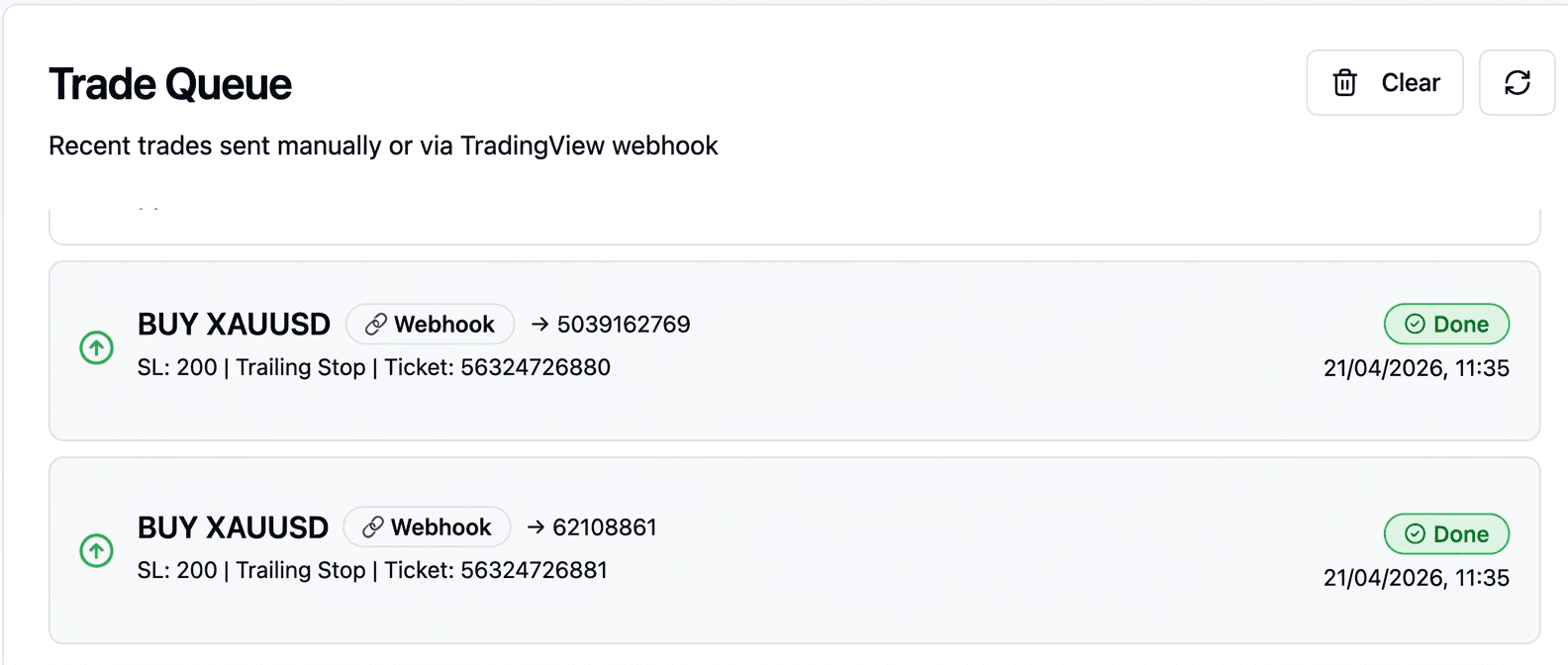
What each entry shows
- Action & symbol: e.g.
BUY XAUUSDorSELL EURUSD. - Source: a chip indicating where the signal came from (e.g. Webhook or Manual).
- Account: the MT5 account number the trade was routed to.
- Protection: the SL and either TP or Trailing Stop applied to the trade.
- Ticket: the MT5 ticket number once the trade is opened, for cross-referencing in your terminal.
- Status: Pending while the EA picks it up, Done once executed.
- Timestamp: date and time the signal was received.
One alert sent to several accounts collapses into a single grouped entry showing "N accounts" with a per-account status underneath, so a fan-out reads as one event rather than five rows.
The statuses and how a trade moves between them
| Status | Meaning |
|---|---|
| Pending | Written to the queue, waiting for an EA to claim it |
| Processing | An EA has claimed it and is executing |
| Done | Executed. The ticket number is filled in |
| Failed | Rejected by the broker, or timed out |
| Rejected / Skipped | Never sent, with a reason |
Two timeouts move a trade to failed on their own: a trade nobody claims within 5 seconds, and a claimed trade that does not report back within 30 seconds. A trade sitting at Pending and then failing usually means no EA was polling, not that the broker refused it.
Close-all is briefly held in a broadcasting state so every connected chart can pick it up, which is why such an entry can vanish from the default view for a few seconds before settling.
Seeing why a signal did not trade
The view selector at the top right switches between executed trades and a view that also includes skips and rejections. The second view is the one to use when an alert appears to have done nothing, because it shows entries carrying a reason:
outside_trading_window, blocked by the account's scheduleaccount_not_connected, no EA polling at the timeno_eligible_account, nothing matched the signalstale_dashboard_id, the alert carried an ID that no longer exists
Skips and rejections are written by the webhook path. A manual trade blocked by a trading window produces no row at all, only a message at the time of sending.
Clear deletes your whole trade history
The Clear button is not a local tidy-up. It permanently deletes every trade row on your account, not only the entries currently shown and not only the ones matching the current filter.
Anything you need for record-keeping should be exported or reconciled against your MT5 terminal first. The ticket number on each executed entry is the link between the two.
Refresh behaviour
The queue polls every three seconds and shows the newest 30 matching entries, so an alert fired in TradingView appears within a few seconds rather than instantly. The refresh button forces an immediate fetch.
Nothing prunes older trades automatically. They remain in your account and simply fall outside the newest 30 shown here.
Common uses
- Confirm a TradingView alert was received: fire your alert, then check that a matching entry shows up here with the right symbol, action, and protection values.
- Match dashboard trades to MT5: use the ticket number to find the same trade in your MT5 terminal's Trade tab.
- Verify routing: the account number on each entry confirms which of your MT5 accounts took the signal.