
Creating and editing Trading Windows
How to create and edit Trading Windows that control the hours an account accepts signals.
Trading Windows define the hours your account will accept signals. Outside a window the account stays online (heartbeat continues) but signals are rejected server-side.
Each account card shows a Trading Window slider. Click it to open the editor.

The Trading Window slider on the account card. Click to open the editor.
Editing a window
- Times snap to 15-minute increments.
- Toggle the days of the week inside the editor. Saturday and Sunday are disabled, since MT5 brokers don't trade weekends.
- Use the session presets (London, New York, Asia) for one-click smart defaults.
- You can stack multiple windows on one day (e.g. London open + NY overlap only).
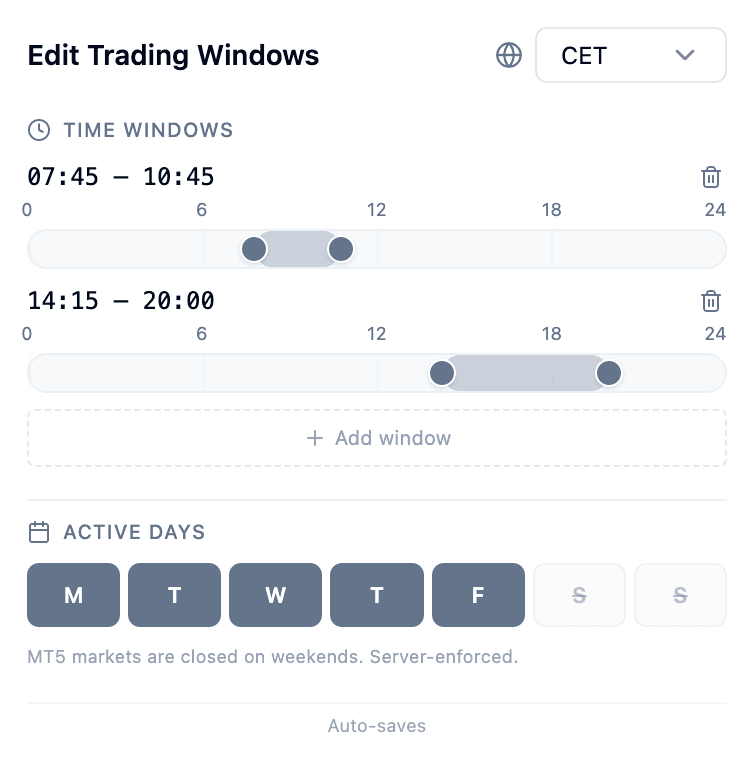
The Edit Trading Windows panel, for stacking multiple windows, toggling active days, and changing timezone. Changes auto-save.
How stacked windows combine
Windows are additive, not restrictive. A signal is accepted if it falls inside any window that applies to the account, so adding a second window widens the trading day rather than narrowing it.
If you want to trade the London open and the New York overlap but nothing between them, that is two windows. There is no way to express "inside window A but not window B", because no window ever subtracts from another.
What "no window" means
An account with no schedule attached trades 24 hours a day. Trading Windows are opt-in: the absence of a window is not a closed door, it is an open one.
This matters when you attach a schedule to specific accounts. A schedule that names accounts applies only to those accounts, and every other account keeps trading around the clock until it gets a schedule of its own.
Timezones and overnight windows
Each schedule carries its own timezone, and the window is evaluated in that timezone rather than in UTC or your browser's local time. A London session window set to Europe/London keeps tracking the London session across daylight-saving changes without you editing it.
Windows that end before they start are treated as crossing midnight. A window from 22:00 to 06:00 is one continuous overnight session, not an empty range, which is what makes the Asia session expressible in a single window.
What happens to a signal outside the window
The signal is rejected before it reaches your terminal. The account is skipped with the reason outside_trading_window, and that outcome is recorded rather than silently dropped, so a signal that appears to have gone missing can be traced.
Two consequences worth knowing:
- The account stays online. Heartbeats continue and the card does not go red. The account is available but not accepting.
- Only the blocked accounts are skipped. If one alert targets three accounts and only one is inside its window, that one still trades. The other two are recorded as skipped.
Manual trades from the dashboard go through the same check, so a trading window cannot be bypassed by submitting the trade by hand.
Trade Queue: viewing recent signals
How to use the Trade Queue to view and audit recent signals sent to your MT5 accounts.
Connecting an AI agent (Claude, ChatGPT, Cursor) to your account
How to connect a read-only AI agent, such as Claude, ChatGPT, or Cursor, to your account data via the Nexum Trader MCP server.